AI with CalendarFundraiser
Your campaign, in the AI app you already use. Ask Claude, ChatGPT, or Grok how your calendar fundraiser is doing, and it answers from your own campaigns.
- Claude
- ChatGPT
- Grok
- CodexComing soon
What it can do
- Draft campaigns
- Check totals and payouts
- Answer analytics
- Add participants
- Prepare messages
Answers in seconds
Ask how a campaign is doing, which dates are open, or who is leading, and get the answer right away.
You stay in control
It drafts campaigns and prepares messages. Nothing is published or sent until you approve it.
Private to your organization
Every connection is approved by you and logged. Donor contact details are never shared.
How it works
Your AI app reads your own campaigns through CalendarFundraiser and brings back answers, drafts, and messages.
Campaigns
- Dates claimed
- Open dates
- Goal
Team
- Participants
- Leaderboard
- Invite list
Money
- Gifts
- Payouts
CalendarFundraiser
Your organization only
- Claude
- ChatGPT
- Grok
You get
- Answers
- Reports
- Drafts
- Messages
You decide
- Publish
- Send
- Share
You approve everything
The assistant prepares. You review, edit, and approve. Nothing is published or sent without you.
- Campaign draft
- Reminder
- Thank-you message
- Participant list
- Weekly summary
- Open dates
Lincoln Lions Baseball
Campaign
Published by you
Reminder to participants
Sent by you
Connect in 3 steps
Have a CalendarFundraiser account
Sign up free (or sign in) — your campaigns and organization are what your assistant will work with.
Add CalendarFundraiser in your AI app
Open Claude, or the AI app you use, and paste our address. Pictures for each app are below.
Approve access — then just ask
A one-click consent screen connects your organization. Ask “How is my fundraiser doing?” and watch it answer.
Things you can just ask
Your assistant can
- Check live totals, open dates, pace, and reach on any campaign — and review the week
- See recent donations (anonymous donors stay anonymous), the roster, the leaderboard, and your past supporters
- Create and fix DRAFT campaigns from our holiday, school, and sports templates
- Add your participants and your invite list by name, and tell you why a campaign can't go live yet
- Pull every share link and QR code — including each participant's personal link — and write the messages for you
- Prepare a message to your team or donors that waits in your dashboard until you approve it
It can never
- Publish a campaign — going live always happens in your dashboard
- Issue refunds, or touch payout and bank settings
- Send email or texts on its own — anything it writes waits for your approval
- See donor email addresses or phone numbers, or delete anything
Set it up in your AI app
Pick your app, copy the address, and follow the pictures.
https://calendarfundraiser.com/mcp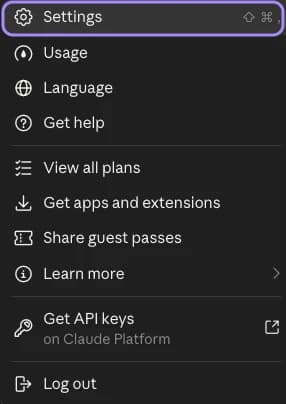
A. Click your name at the bottom left, then Settings.
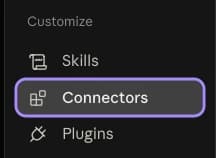
B. In the Settings menu, click Connectors.

C. Click Add, then Add custom connector. Paste the address and click Allow.
Other apps
Claude Code (terminal)
- Create an access key at Settings → AI Access in your dashboard
- Run: claude mcp add --transport http calendarfundraiser <server URL> --header “Authorization: Bearer YOUR_KEY”
Gemini
- In the Gemini app, open Connected Apps → New connector → Custom and paste the server URL
- Gemini CLI: add the server URL under mcpServers in settings.json with your access key as an Authorization header
Grok
- Go to grok.com/connectors → New Connector → Custom (paid plans)
- Paste the server URL and connect
Cursor / VS Code / other MCP apps
- Add the server URL as a remote MCP server in your editor's MCP settings, with your access key as an Authorization: Bearer header
Built safe by design
Every connection is scoped to your organization only and authorized by you — a one-click consent screen (OAuth) or an access key you create. Disconnect any app or revoke any key at Settings → AI Access, any time. Donor contact information never leaves CalendarFundraiser, and anything that moves money stays in your dashboard, behind the same protections as always. See our privacy policy and terms of service.
For the technically curious: this is a remote MCP (Model Context Protocol) server — Streamable HTTP at https://calendarfundraiser.com/mcp, OAuth 2.1 with PKCE, discovery at /.well-known/oauth-authorization-server. Any MCP-compatible client works.
Questions
What can my AI assistant do once connected?
It can check any campaign's live totals and open dates, list recent donations (anonymous donors stay anonymous), show the participant roster and leaderboard, pull every share link and QR code, tell you why a campaign cannot go live yet and when your money pays out, review the week, write the treasurer's summary, create and fix draft campaigns from our templates, add your participants and invite list by name, and prepare messages that wait in your dashboard for your approval. Then it does what AI is best at — writing: personalized parent texts, social posts, thank-you notes, and weekly summaries, with the correct links filled in.
What can it never do?
It can never publish a campaign, issue refunds, touch payout or bank settings, send email or texts through CalendarFundraiser, delete anything, or see donor contact information. Drafts it creates collect nothing until a person publishes them from the dashboard.
Is it secure?
Yes. Access is scoped to your organization only, turned on per organization by an admin, authorized by you through a one-click consent screen (or an access key you create), and revocable any time from the AI Access page. The organization's owner is emailed whenever a new assistant is connected, every call is logged where you can see it, keys expire after a year, and each connection has a daily allowance for what it can add. Donor emails and phone numbers are never shared with the AI.
Does it cost anything?
No — AI access is included with CalendarFundraiser. You only need an account with an AI assistant that supports connectors (for example a paid Claude or ChatGPT plan).