AI with CalendarFundraiser: Run Your Calendar Fundraiser from Claude or ChatGPT
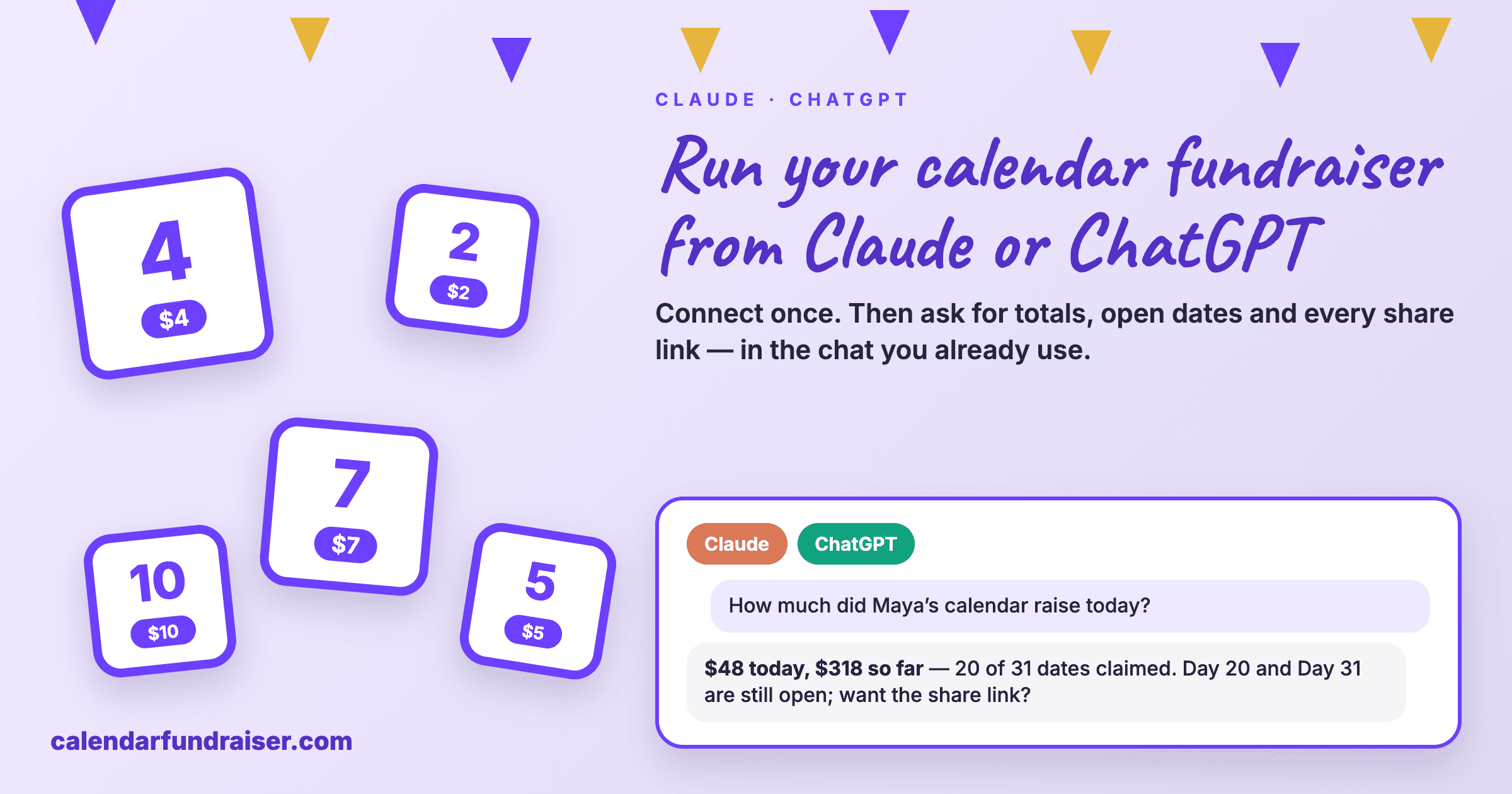

Your calendar fundraiser now works inside the AI app you already use. Connect Claude, ChatGPT, or Grok in three steps, then check totals, draft campaigns, add participants, and prepare messages by asking in plain English. Nothing is published or sent without you.
Short answer: You can now run your calendar fundraiser from the AI app you already use. Connect Claude, ChatGPT, or Grok to your CalendarFundraiser account, then ask in plain English: how much has come in, which dates are still open, who your top participants are, when you get paid. It can also draft a new campaign and prepare messages for you to approve.
We call it AI with CalendarFundraiser.
What it does
Organizers are busy. Most are parents, coaches, and volunteers running a campaign between everything else. Opening a dashboard and reading charts is one more task. Asking a question is faster.
Once connected, your AI app can:
- Draft campaigns from a template, ready for you to review
- Check totals and payouts, including when your next payout arrives
- Answer analytics questions, like which dates are open and which days brought the most gifts
- Add participants and invite-list contacts from a list you paste in
- Prepare messages such as reminders and thank-you notes, for your approval
What it cannot do
This part matters as much as the list above.
- It cannot publish a campaign. A person publishes from the dashboard.
- It cannot send a message on its own. You approve every message first.
- It cannot refund, pay out, or delete anything.
- It cannot see donor contact information. Anonymous donors stay anonymous.
- It cannot see another organization's campaigns.
You stay in control. The assistant does the preparing, and you make the decisions.
Connect in three steps
- Turn it on. In your dashboard, open AI with CalendarFundraiser and turn on AI access for your organization.
- Connect your AI app. In Claude, open Settings, then Connectors, then Add, then Add custom connector. Paste the address shown in your dashboard and click Allow. Using ChatGPT? It takes a few more steps. Your dashboard shows each one with a picture.
- Ask your first question. Try: "How is my campaign doing, and which dates are still open?"
That is the whole setup. Most organizers finish in about two minutes.
Ten questions to ask
Copy any of these into your AI app.
- How is my campaign doing, and which dates are still open?
- Who are my top participants this week?
- Which participants have not had a gift yet?
- When is my next payout, and how much is it?
- What came in over the last seven days?
- Is my campaign ready to publish? What is missing?
- Draft a new calendar campaign for our spring season.
- Add these ten players to my team campaign.
- Prepare a reminder for the participants who have not shared their calendar.
- Prepare a thank-you message for this week's donors.
An example
A booster club treasurer asks, on a Thursday night: "How is the baseball campaign doing?"
The assistant answers with the total raised so far, the number of dates claimed, the dates still open, and the three participants in the lead. The treasurer follows up: "Prepare a reminder for the players with open dates." The reminder is written and waits in the dashboard. The treasurer reads it, changes one line, and sends it.
Two questions, one approval, and the work is done.
Who can use it
Any organization with a CalendarFundraiser account: schools, PTAs and PTOs, booster clubs, sports teams, churches, and nonprofits. It works with team campaigns, where each participant has a calendar, and with campaigns where you invite donors directly.
Privacy and control
- Each connection is tied to one organization.
- An organization admin turns AI access on, and can turn it off at any time. When it is off, every connected app stops answering at once.
- Every action an assistant takes is listed in your dashboard for 30 days.
- You can disconnect a single app without affecting the others.
Get started
See how AI with CalendarFundraiser works →
Already have an account? Open AI with CalendarFundraiser in your dashboard → and follow the three steps.
Ready to Start Your Calendar Fundraiser?
Create your custom-branded campaign in minutes and start raising funds with the strategies you just learned.
Start Free Campaign →