How to Import Your School Roster from ParentVUE (Synergy), PowerSchool or Infinite Campus into Your Calendar Fundraiser
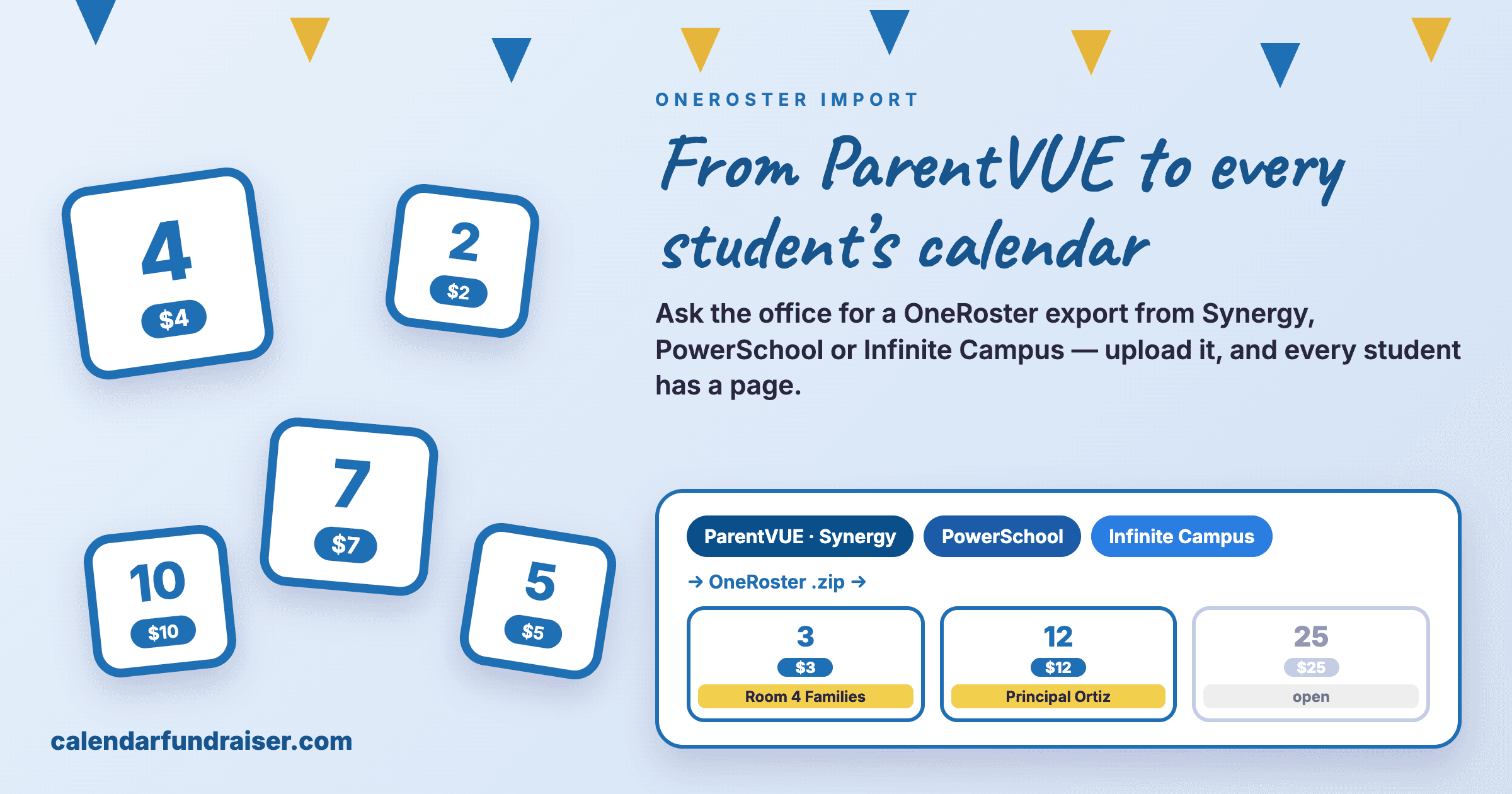

Every student in your school calendar fundraiser needs their own calendar page. Instead of retyping a spreadsheet, ask the office for a OneRoster export from your school system and upload it: students land in their homerooms and grades in minutes.
Short answer: Ask your school office for a OneRoster export of your students, upload the zip on your campaign, pick your school, and import. Every student gets their own calendar page, sorted into homerooms and grades, in a few minutes.
Why every student needs their own calendar
A school calendar fundraiser works best when each student has a page of their own. Grandparents give "for Ana", homerooms compete on the leaderboard, and a teacher can see their class's total. Getting there used to mean a long evening with a spreadsheet: copying names, fixing columns, guessing which teacher a student belongs to.
Your school already has that list in its student record system. OneRoster is how you get it out cleanly.
What is OneRoster?
OneRoster is the standard school systems use to share class lists with other tools. Most student information systems can export it as one zip file containing the school's classes, students and enrollments. We read that file and build the calendar pages from it.
Step 1: Find out which system your school uses
Most volunteers know the parent app, not the system behind it. Use this table:
| If parents log in to… | your school runs… | ask the office for |
|---|---|---|
| ParentVUE / StudentVUE | Synergy (Edupoint) | a OneRoster export (.zip) |
| PowerSchool Parent Portal | PowerSchool SIS | a OneRoster export (.zip) |
| Campus Parent | Infinite Campus | a OneRoster export (.zip) |
| Skyward Family Access | Skyward | a OneRoster export (.zip) |
| Aeries Parent Portal | Aeries | a OneRoster export (.zip) |
Another system? Most student information systems can export OneRoster; ask the office or district IT. Product names are trademarks of their owners and are used only to say which exports work; no partnership is implied.
ParentVUE and StudentVUE are the parent and student apps for Synergy, the student information system from Edupoint used by many districts. If your parents log in to ParentVUE, ask for a OneRoster export from Synergy.
Step 2: Ask the office for a OneRoster export
Send the office or district IT a short note:
"Hi! We're running our school's calendar fundraiser on CalendarFundraiser. Could you send a OneRoster export (.zip) of our school's students, classes and enrollments? We only use first name, last name, grade and homeroom."
Most systems produce it in a few clicks. District IT may prefer to set up a direct connection instead; that works too (step 6).
Steps 3 to 5: Upload, preview, import
lincoln-oneroster.zip
orgs.csv · classes.csv · users.csv · enrollments.csv
From Synergy, PowerSchool, Infinite Campus, Skyward, Aeries or another system that exports OneRoster.
Import from your school system (OneRoster)
School
Classes on the calendar
Lincoln Elementary: 412 students in 18 classes · grades K, 1, 2, 3, 4, 5
- Ana Torres · grade 3 · Smith
- Ben Ortiz · grade 3 · Smith
- Kim Ng · grade K · Lee
- Showing 3 of 412
Smith · grade 3
Ana T. · Ben O. · 21 more
Lee · grade K
Kim N. · 19 more
Garcia · grade 5
Leo P. · 24 more
Then share as usual: print the QR flyer, or email families their student's own link.
- Open your school campaign and go to the participants tab. Choose Import your roster, then Import from your school system (OneRoster), and upload the zip.
- Pick your school (a district file can list several) and how classes appear: homeroom teacher, homeroom name, or grade only.
- Click Preview. You see the number of students, homerooms and grades, and a sample of names. Students without a homeroom (common in middle school) are grouped by grade.
- Click Import. Every student now has a calendar page in their homeroom.
Step 6: Share the links
Importing creates the calendars but does not message anyone. Print the QR flyer for backpacks and the front office, or email families their student's own link from the dashboard.
For district IT: connect directly
Instead of a file, choose Connect directly and enter the OneRoster address, key and secret (OneRoster 1.1 or 1.2, OAuth 2 client credentials or OAuth 1.0a). We test the connection before saving it, store the secret encrypted, and read rosters only. Disconnecting deletes the stored details.
Student privacy
Only each student's first name, last name, grade and homeroom are read. Student emails, phone numbers, ID numbers and birth dates are never kept, and the export file is discarded after the import. Public pages follow your campaign's name privacy setting.
Schools that use Canvas
Canvas is where teachers post coursework, not where the school keeps its student list. Canvas gets its class lists from your student information system, so ask the office for the OneRoster export from that system as above. Once your calendar is live, teachers can post its link or QR code in a Canvas course announcement.
Updating the roster
New students mid-year? Upload a newer export. Students already on the campaign stay as they are; only new students are added.
Ready? See how the OneRoster import works, or create a free school calendar.
Product names (ParentVUE, StudentVUE, Synergy, PowerSchool, Infinite Campus, Skyward, Aeries) are trademarks of their owners and are used only to describe which exports work. No partnership is implied.
Ready to Start Your Calendar Fundraiser?
Create your custom-branded campaign in minutes and start raising funds with the strategies you just learned.
Start Free Campaign →