Running a Calendar Fundraiser for a Whole School: Import the Roster, or Let Families Join?
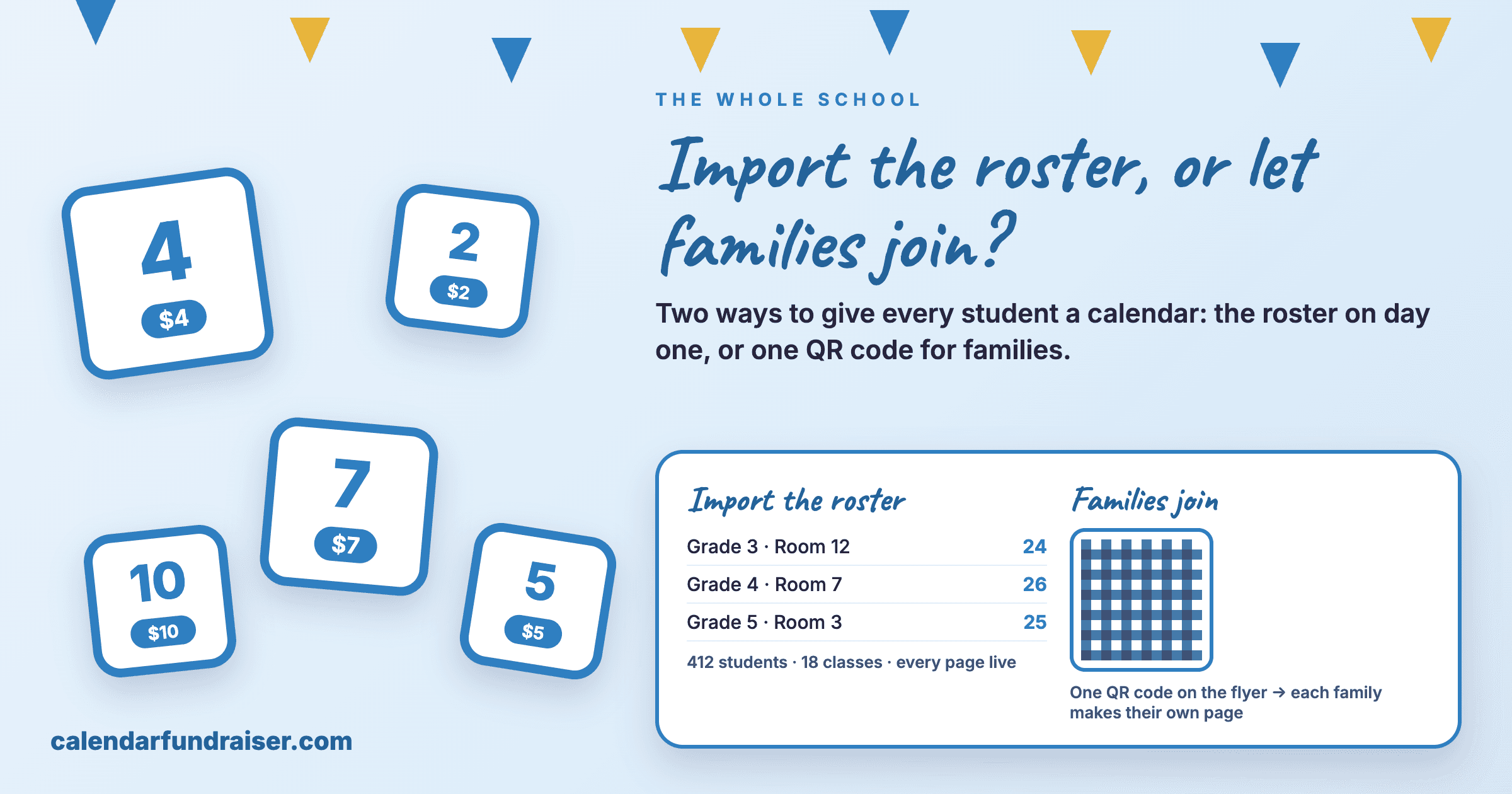

A PTA or booster club running a calendar fundraiser for hundreds of students has one decision to make before launch: import the student list so every page exists on day one, or share one QR code and let families add themselves. Here is exactly what to do either way, and how each family finds their student's page.
Short answer: If you can get the student list, import it before you launch. Every student has a page on day one, the class and grade leaderboards are full from the first gift, and families find their page by searching the student's name on the campaign page. If you cannot get the list, share one QR code and families add their student to the right class themselves.
Why a whole school needs a page per student
A school calendar fundraiser works because a grandparent gives "for Ana" and Ana's class sees it on the leaderboard. That needs a page per student, grouped into classes and grades. For a school of 400 or 800 students the question is not whether each student gets a page, it is how the pages come to exist and how each family gets to theirs.
There are two ways. Pick one before launch.
If you DO import: every page exists before the fundraiser starts
This is the way we recommend for a whole school.
What you do
- Open your campaign from My Campaigns, click the Email Participant Team tab, then the Roster sub-tab.
- Under Paste your roster, choose Students and teachers.
- Paste the roster straight from Excel, Google Sheets or your student information system export: one row per student with first name, last name, grade, teacher (or homeroom), and a parent email if you have it. Column order and headings do not matter; they are detected. A template and a CSV upload are there too. Schools on Synergy, PowerSchool or Infinite Campus can upload a OneRoster export instead; see the OneRoster guide.
- Click Preview import, check the counts (students, grades, classes), fix any flagged rows, then click Import students.
The moment the import finishes, every student has their own page with a personal link and QR code, grouped into class and grade, and the leaderboards are live. Nobody has to sign up or open an email for the page to exist.
How families get to the page (use any or all)
- Email every family in one click. If the roster had parent emails, open the 2. Keep them sharing sub-tab and click Send to team. Every family receives their own student's link, and daily reminders keep sending it through the month. Families do nothing.
- Search by name. Share your campaign page link (the Share button on the Overview tab copies it) in the newsletter, on the flyer that goes home, in the class group texts. On that page every student is listed with a Search participants box. A parent types the child's name, taps it, and is on the student's own page, ready to share. No email needed.
- Hand out each student's own link. On the Roster sub-tab switch to Participant Links. Every student has a Copy link button and a QR code, so you can print a sheet per class or send the links through the school's own email.
One thing you do not need on this path is the Team QR Code tab. That is the join form for the other way of running a campaign.
If you DO NOT import: families add themselves with one QR code
Best when you cannot get a student list, or you only want the families who opt in.
What you do
- On the Roster sub-tab, under Paste your roster, choose Teachers only and paste the teacher list with grades (two columns: teacher name, grade). This creates the classes so each student lands in the right one.
- Click the Team QR Code tab. It gives you one QR code and join link for the whole campaign, with a ready-to-print flyer. Newsletter, backpack flyer, class group texts, the gym wall.
What families do
Scan the code or tap the link, enter the student's name, pick the grade and teacher, enter an email, and the student's page is created on the spot and emailed to them. From then on they share that link, and reminder emails keep it in front of them.
The trade-off: a student has a page only once a family scans, so the leaderboards fill in as families join rather than on day one.
Which one?
- You can get the list from the office, with or without parent emails: import.
- You have parent emails too: import, then Send to team. The highest-participation setup.
- You cannot get the list, or privacy rules keep it in the office: no import, one QR code.
- You imported, and a family joins through the QR code anyway: when the name and class match a student who has no email yet, the join attaches to that student's existing page. One page per child either way.
Student privacy
The import reads first name, last name, grade and teacher, plus a parent email if you include one. Parent information is only used to send the family their link; nothing is shared publicly, and the file you paste or upload is not stored.
Looking it over before your start date
You can activate the campaign early to walk through it yourself, and it does not change anything: the calendar month, the dates and the amounts stay as you set them, and Unpublish on the Get Started tab pauses it again until the morning you launch. Three things to know while you review. Once active, anyone with the link can give, so hold the link until your start date. If the roster is already imported with parent emails, switch Automatic reminders off on the Email Participant Team tab until you are ready for families to hear about it; the Send to team email never goes out on its own. And a test gift is a real charge: you can click a date and walk through checkout up to the payment screen without paying, and if you do pay, Request refund beside that gift on your Donations tab returns it and frees the date.
Which Stripe account to use
Donations settle into a payout account you connect on your Billing page, and for a school there is one question that comes up every time: the PTA already has "a Stripe account" through its membership or dues platform, so can it use that? No. An account that lives inside another platform is a sub-account of that platform's own Stripe setup, with no Stripe login of its own, so there is nothing to connect. Click Set up Stripe payouts on your Billing page instead. It creates the account in a few minutes, right in the app, with the PTA's legal name, EIN and the bank account you want the money in (the same one the other platform pays into is fine), and there is no new Stripe dashboard to manage.
It also matters for the fees. When the account is set up through CalendarFundraiser, we pay Stripe's card-processing fee on every calendar donation, so you receive the full date amount. Connect a separate Stripe account you created yourself at stripe.com and Stripe charges its processing fee to that account, which we cannot pay on your behalf.
When the money arrives, and what comes off a gift
Two questions every treasurer asks before launch. First, the payout schedule: we set it, not Stripe. Payouts run on a rolling daily schedule, and each gift is paid out a fixed number of days after the donor gives it. Every new account starts at 7 days, the cushion Stripe recommends for refunds and card disputes. An organization can ask us to shorten it, down to the 2 days Stripe allows at minimum, so a gift made on a Monday reaches the bank on Wednesday. Your Billing page, under Where's my money? See your payouts, shows what has been paid out, what is clearing, and what is on its way.
Second, processing: nothing is added to or taken from the day amount on your side. When a donor claims a date, they pay the date amount plus one small service fee that is shown to them before they pay. That service fee already includes the card-processing cost, and we pay Stripe's processing out of it. The full date amount goes to your organization: a donor who claims the 15th sends $15 to the PTA, every time. The fee schedule is in section 6 of our Terms of Service, and every organizer reads and initials it before a calendar goes live.
Ready? Create a free school calendar, or read how to import a OneRoster export from your school system.
Ready to Start Your Calendar Fundraiser?
Create your custom-branded campaign in minutes and start raising funds with the strategies you just learned.
Start Free Campaign →